
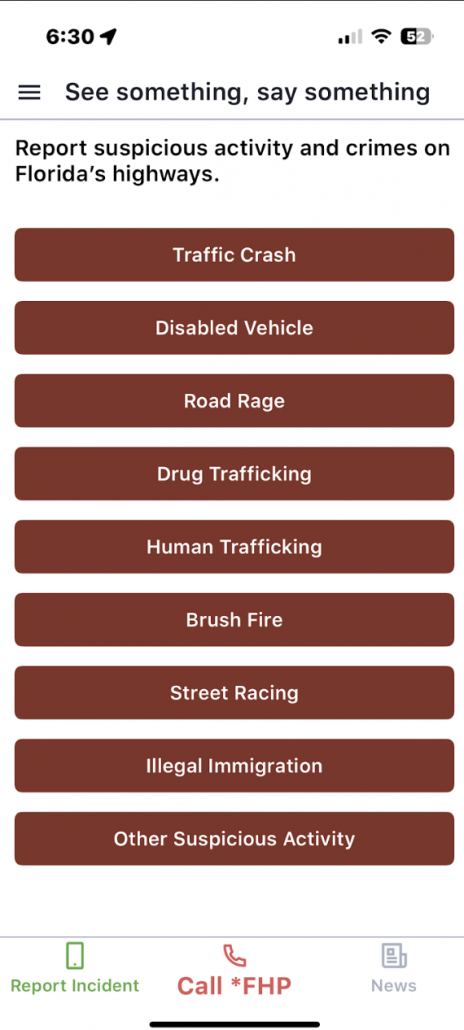
The Categories section defines the types of suspicious activity or incidents that citizens can select when submitting tips through the mobile app. These are shown prominently on the “See Something, Say Something” page and help dispatch teams organize and triage reports effectively.
🗂️ Categories Table Overview
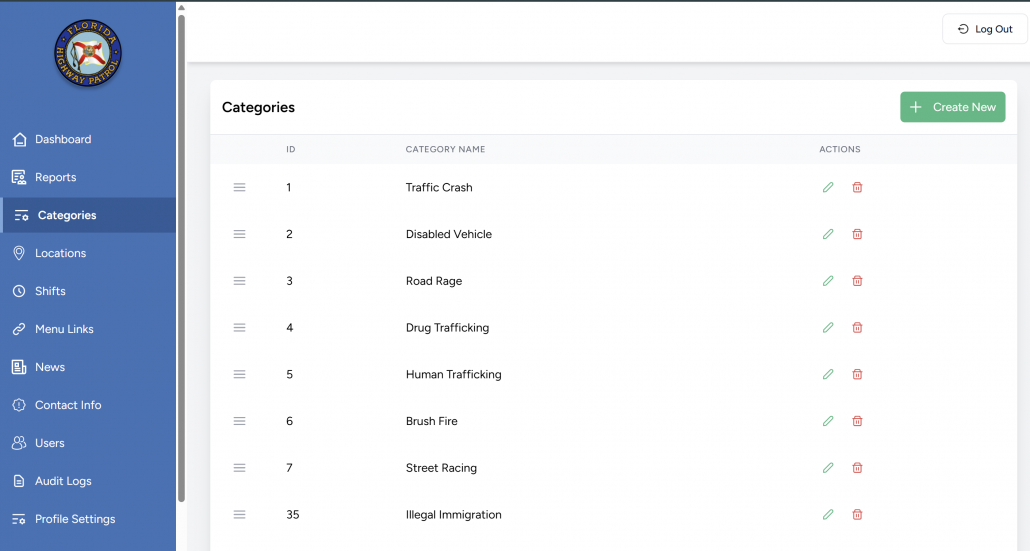
Each row in the Categories list displays:
| Column | Description |
|---|---|
| ☰ (Drag Icon) | Allows drag-and-drop to reorder the display order. |
| ID | Internal identifier (auto-assigned). |
| Category Name | The visible name of the tip category in the app. |
| Actions | ✏️ Edit |
📌 Reordering Tip Types: Dragging the ☰ icon allows Admin or Dispatch users to manually rearrange category order. Changes are reflected immediately in the app’s report form and button list.
➕ Creating a New Category
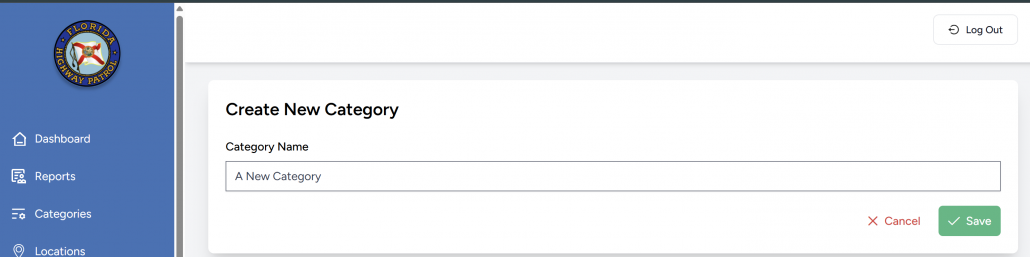
Click “Create New” to open the add-category form.
- Category Name: Must be unique and clearly describe the suspicious activity (e.g., “Street Racing” or “Drug Trafficking”).
- Click Save to add, or Cancel to exit.
✏️ Editing a Category
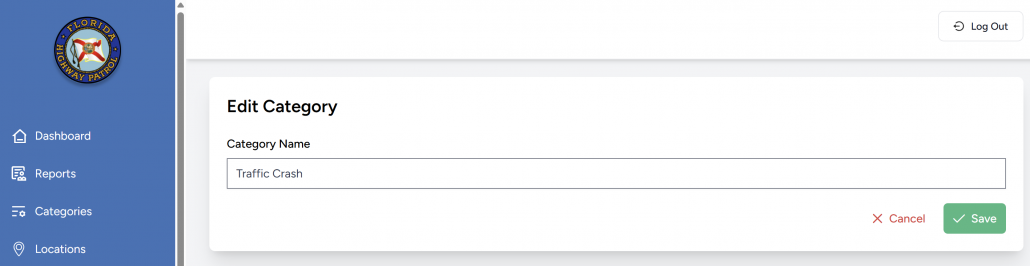
Clicking the ✏️ icon on any row brings up the Edit Category view.
- Admins or Dispatchers can update the label for clarity or consistency.
- Changes are reflected instantly in the mobile app’s dropdown menu and quick-report buttons.
🗑️ Deleting a Category
Clicking the 🗑️ icon prompts a confirmation to permanently delete the category.
⚠️ Note: Deleting a category will remove it from the mobile app interface, and any reports already filed under it will still retain the original label for archival purposes.
📲 Mobile App Appearance
- Category Buttons (See Something, Say Something Page)
- Top-level categories appear as large, tappable buttons in the app’s UI.
- Button labels match the Admin Panel exactly (e.g., “Traffic Crash”, “Drug Trafficking”).
- Dropdown List for Submitting Tips
- The same categories appear as selectable items during tip submission.
- Disabled categories may be greyed out or hidden from selection based on app logic.
✅ Best Practices for Category Management
- Keep category names brief, actionable, and non-technical (e.g., avoid acronyms or vague terms).
- Maintain a consistent tone and formatting (e.g., Title Case).
- Avoid overlapping terms — ensure each category serves a distinct purpose.
- Review categories quarterly based on real tip data and reporting trends.