
This section is used to configure automated report forwarding based on time, category, and recipient groups. It ensures that citizen-submitted reports are routed to the appropriate parties, depending on when the report is submitted and what category it falls under.
🔐 Access & Permissions
| Role | Access Description |
|---|---|
| Admin | ✅ Full access: create, edit, delete, and activate shifts |
| Dispatch | ✅ Full access: manage shift timing, categories, and forwarding |
| Editor | ❌ No access |
📦 Core Functionality
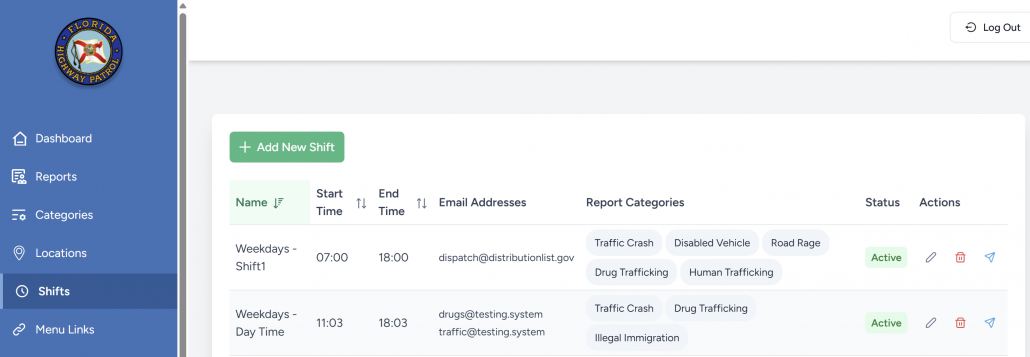
Each shift represents a time window for forwarding specific categories of reports. A shift includes:
- Shift Name (e.g., “Night Shift – Region A”)
- Start Time and End Time (24-hour format)
- One or more Email Addresses to forward reports to
- One or more Report Categories (e.g., Drug Trafficking, Traffic Crash)
- Status Toggle to activate/deactivate the shift
Multiple active shifts may overlap. If a report matches more than one shift, all matching recipients will receive it.
➕ Creating a New Shift
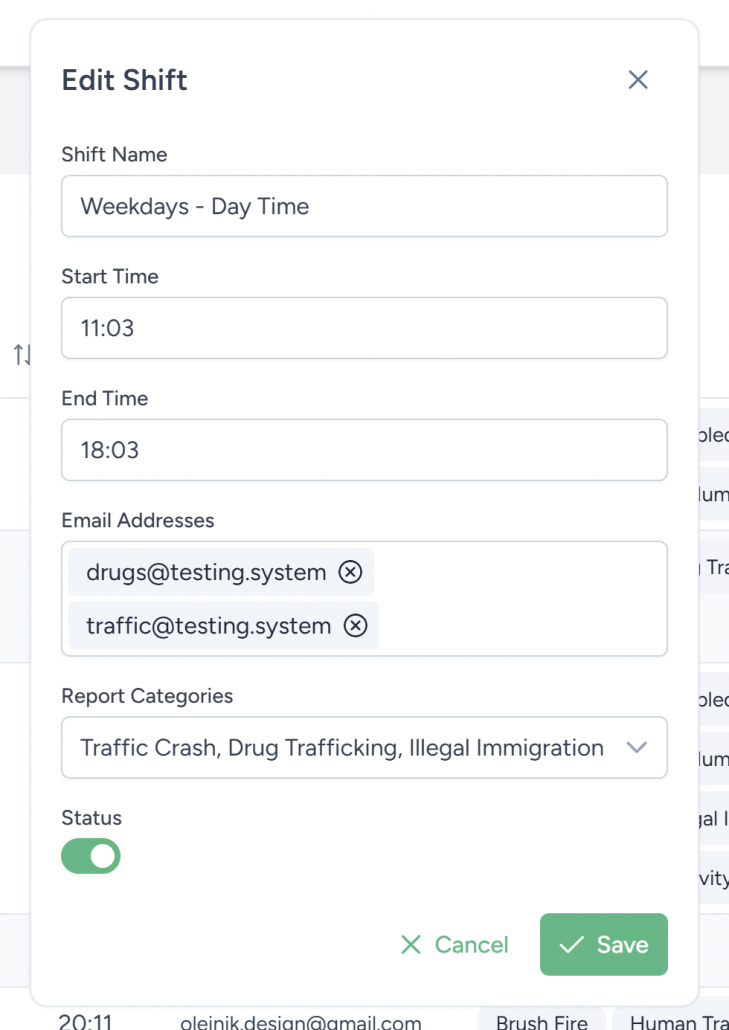
- Click Add New Shift.
- Enter a Shift Name.
- Set the Start and End Time.
- Add one or more Email Addresses (all recipients will receive forwarded reports).
- Select one or more Report Categories.
- Use the Status Toggle to activate or keep it disabled.
- Click Save.
🛠 Editing or Deleting a Shift
- Click the ✏️ Edit icon to change the shift’s name, time, categories, or recipients.
- Click the 🗑️ Delete icon to permanently remove the shift.
- Use the 📤 Test Email icon to send a test message to all listed addresses (helps validate setup).
📤 How Forwarding Works
When a report is submitted:
- The system checks current time against all active shifts.
- Filters for any shift matching the report’s category.
- Sends the report to every email listed in matching shifts.
Example:
- A “Traffic Crash” is reported at 10:45 AM.
- The system finds an active shift from 9:00–17:00 covering that category.
- It sends the report to the configured email group (e.g.,
regiona-tips@fhp.state.fl.us).
✅ Best Practices
- Keep shift windows clearly named to help teams manage schedules.
- Use non-personal group emails for better reliability.
- Regularly test shifts using the 📤 icon, especially after updates.
- Review overlap to ensure proper routing and avoid duplication.
- Temporarily deactivate shifts (toggle off) when not needed.