
The Links section controls the dynamic menu in the FHP mobile app, where citizens access resources such as Public Safety, Road Information, Government Resources, and more. Users with the Editor or Admin role can manage these menu items.
🗂️ Menu Items Overview
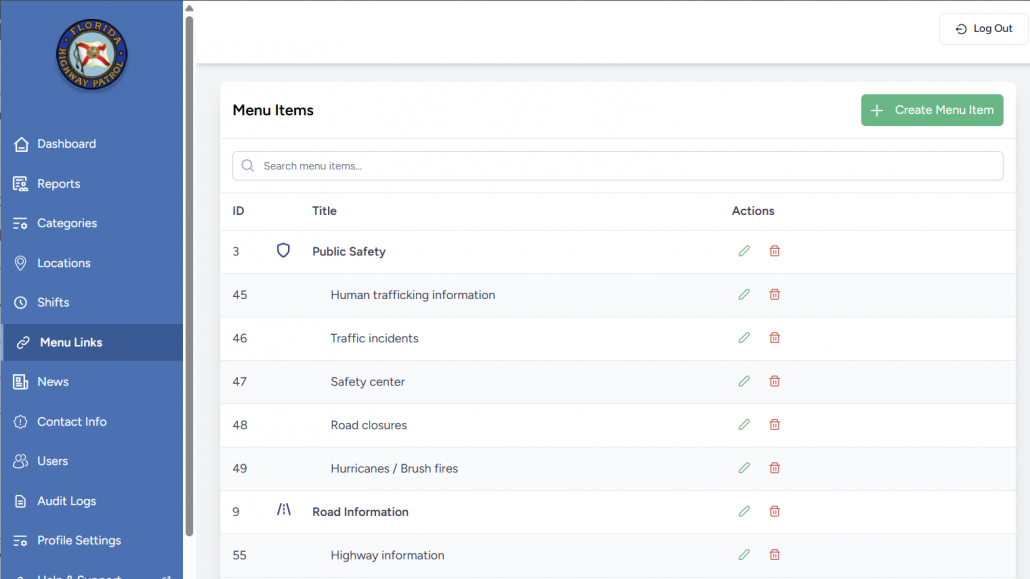
The main Menu Items table provides:
| Column | Description |
|---|---|
| ID | Unique ID of the link item (auto-generated). |
| Title | Name of the link as it appears in the app menu. |
| Actions | Three icons per row: ✏️ Edit |
Users can:
- Use the search bar to find links quickly.
- Click “Create Menu Item” to add new links or categories.
➕ Creating a New Menu Link
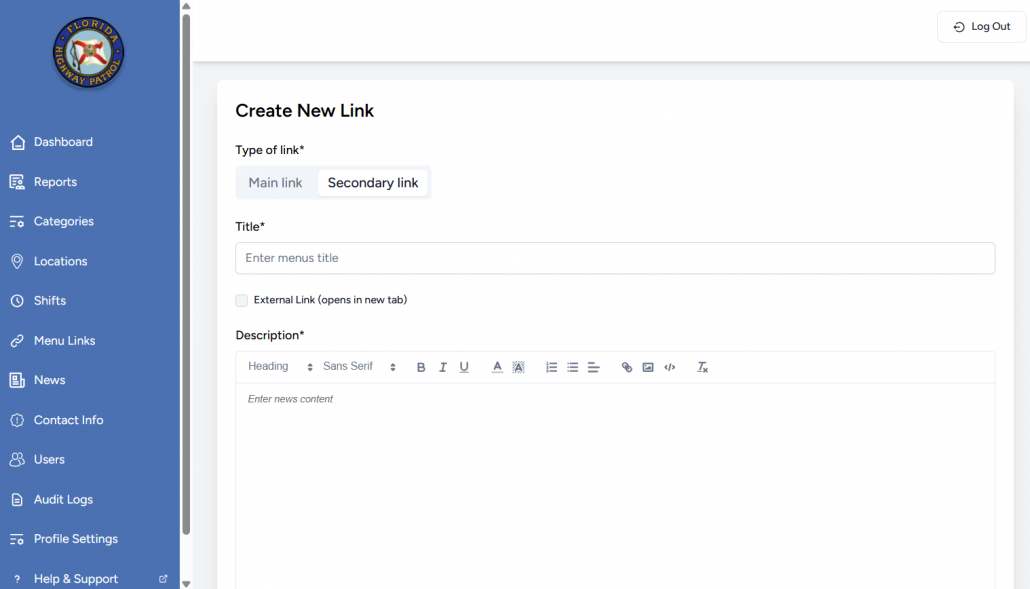
Clicking Create Menu Item opens the “Create New Link” panel.
Fields:
| Field | Description |
|---|---|
| Type of Link | Choose Main link (top-level section) or Secondary link (child item). |
| Title* | Text label shown in the mobile app (e.g. “Traffic incidents”). |
| External Link (opens in new tab) | Allows you to link directly to an external web page instead of a screen within the app. |
| Description* | Rich text editor for optional info users see after tapping the link. |
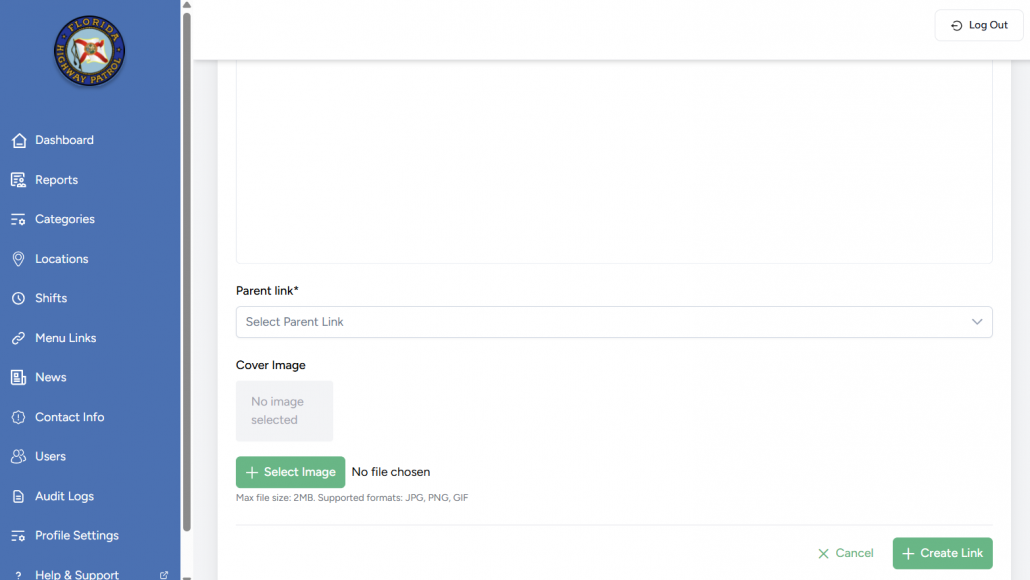
| Parent Link* | Only shown for Secondary Links — define which Main Link they belong under. |
| Cover Image | Upload an image that appears alongside the menu item (JPG, PNG, GIF). |
Action Buttons:
- ✅ Create Link
- ❌ Cancel
Note: When creating a Main Link, you can assign a custom SVG icon using the “Select Icon” option (see screenshot 3).
✏️ Editing a Link
Clicking the ✏️ icon brings up the Edit form with prefilled values.
Admins or Editors can:
- Update the title, description, icon/image, or parent relationship.
- Preview changes visually.
- Use Update Link to save or Cancel to discard.
✅ Good Practice: Use clear, recognizable titles and icons that match the context (e.g., safety, roads, weather).
🗑️ Deleting a Link
Clicking the 🗑️ icon prompts a confirmation dialog to delete the menu item.
- Main Links with children should not be deleted unless all child links are reassigned or removed.
- Deleted links immediately disappear from the app menu.
👁️ Preview Button
- Clicking the 👁️ icon provides a quick view of the current content and layout as it will appear in the app.
- This helps Editors ensure correct formatting before publishing.
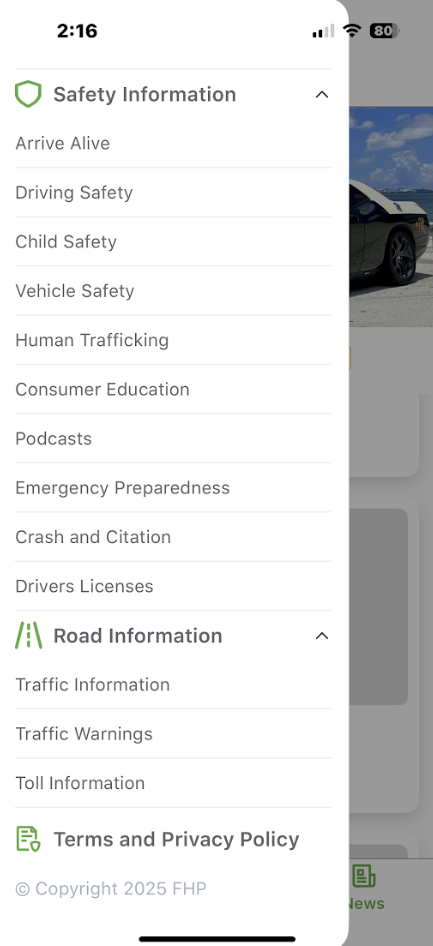
🧭 How It Appears in the App
The FHP Mobile App Menu (screenshot 6) uses this exact structure:
- Main Links: Public Safety, Road Information, Government Resources, etc.
- Secondary Links: Human trafficking info, Traffic incidents, Safety center (shown nested).
Icons (such as shields, roads, books) are automatically assigned based on uploaded SVGs or default categories.
✅ Best Practices for Editors and Admins
- Use brief and meaningful titles for links.
- Avoid duplicate labels across categories.
- Only publish content that’s been reviewed for accuracy and tone.
- Keep icon file sizes below 2MB and in SVG format for Main links.
- For multilingual needs (future-proofing), keep descriptions in clean, structured HTML.